Come along with me on a public learning journey into AWS Cloud and DevOps, designed specifically for those without a technical background. I'll be documenting each step in straightforward, easy-to-understand language to help others make a smooth transition into DevOps. Together, we'll delve into continuous integration, deployment, and automation, breaking down complex concepts into manageable, actionable insights.
Login to AWS console

Set up your Lex chatbot
Navigate to Amazon Lex (type Lex into the search bar of your Console).
Check your URL in your web browser - does it say
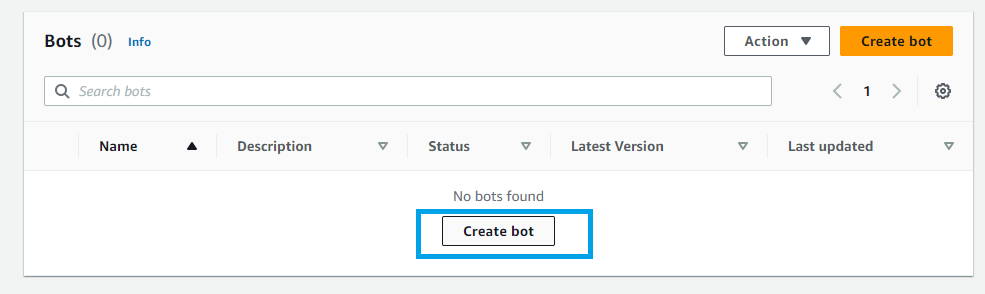
...console.aws.amazon.com/lexv2Select Create bot.
Select Create a blank bot.
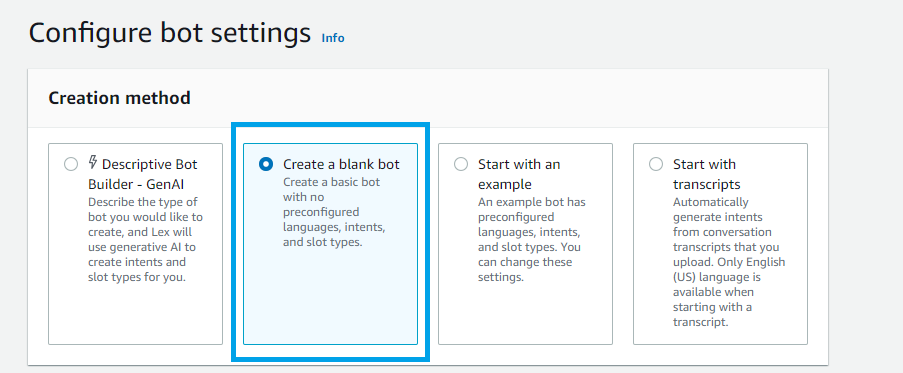
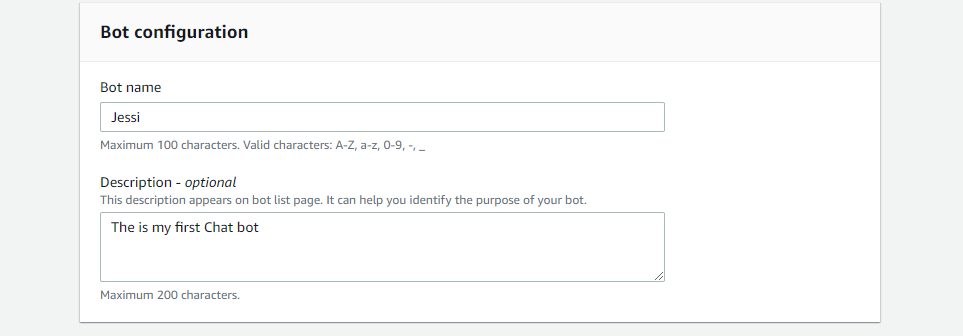
Give name of the bot and description
Under IAM permissions, select Create a role with basic Amazon Lex permissions
Why do we need permissions for Amazon Lex?Amazon Lex requires permissions to access other AWS services on your behalf. Later in this project series, you will integrate Lex with another service, AWS Lambda, which will require these permissions.Under Children’s Online Privacy Protection Act (COPPA), select No.
Under Idle session timeout, keep the default of 5 minutes.
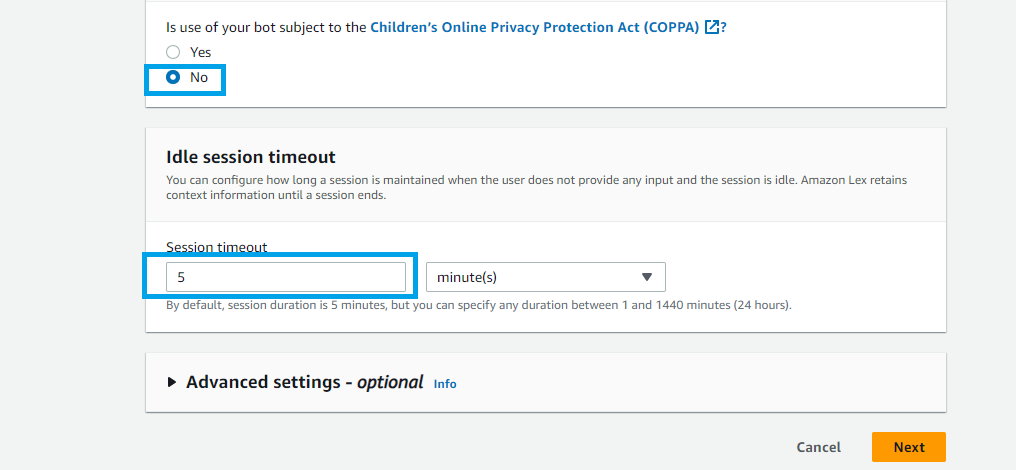
What does "Idle Session Timeout" mean?
"Idle Session Timeout" refers to the period Amazon Lex will keep a session active. If a user remains inactive and does not provide any input for 5 minutes, their session will automatically expire.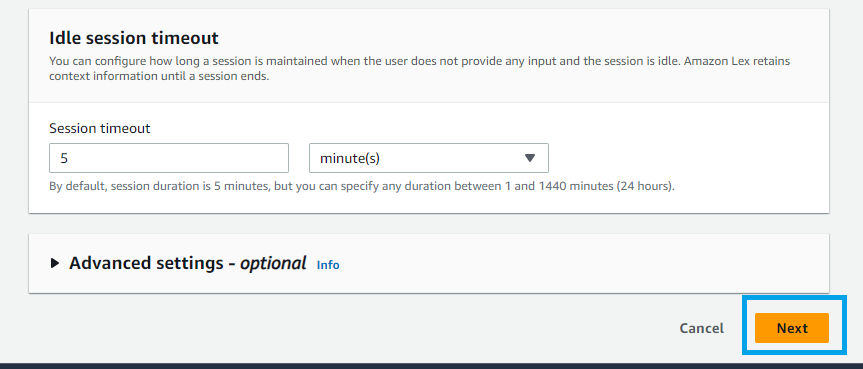
Now on next step
Select language: English
Voice interaction: select one from the list I am selecting Gregory
Intent classification confidence score threshold : keep the default value of 0.40.
And click on done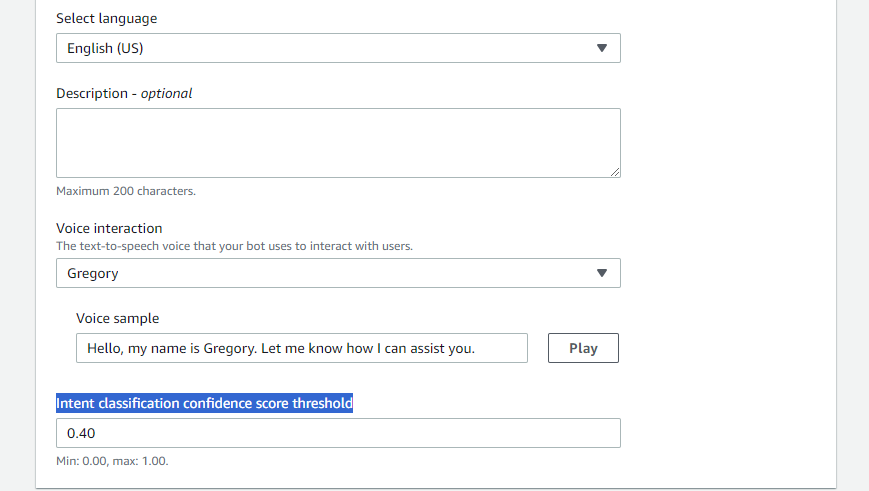
What is the intent classification confidence score threshold?
In Amazon Lex, the intent classification confidence score threshold acts as a minimum requirement for your chatbot to accurately understand user input. Setting this threshold to 0.4 means that your chatbot must be at least 40% confident in its understanding of the user's query before it can provide a response.If the user's input is unclear and the chatbot's confidence score falls below 0.4, it will return an error message instead.You'll see how this functions shortly!Your basic bot structure is now ready, and you can start bringing it to life!

Create your first intent
When your bot is created, you will automatically see a page called Intent: NewIntent.
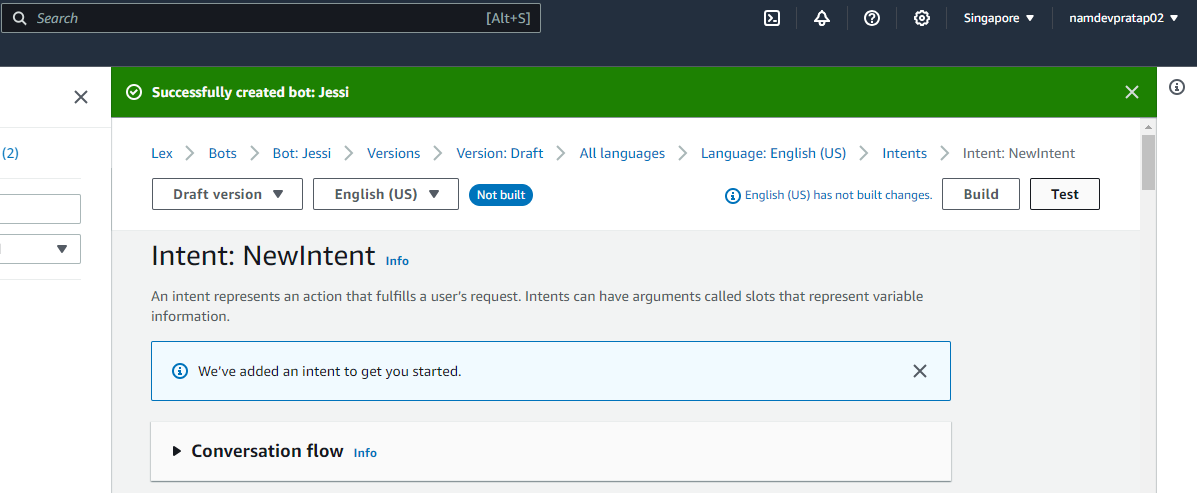
What are intents?
Intents represent the goals or actions a user wants to accomplish during their interaction with the chatbot. Examples of intents include checking a bank account balance, booking a flight, or ordering food.In Amazon Lex, you create and organize your chatbot by defining various intents. By setting up multiple intents, a single chatbot can handle a range of related requests effectively.Let's change the name!
Under Intent details : Welcome-Intent as intent name
Add the description of your choice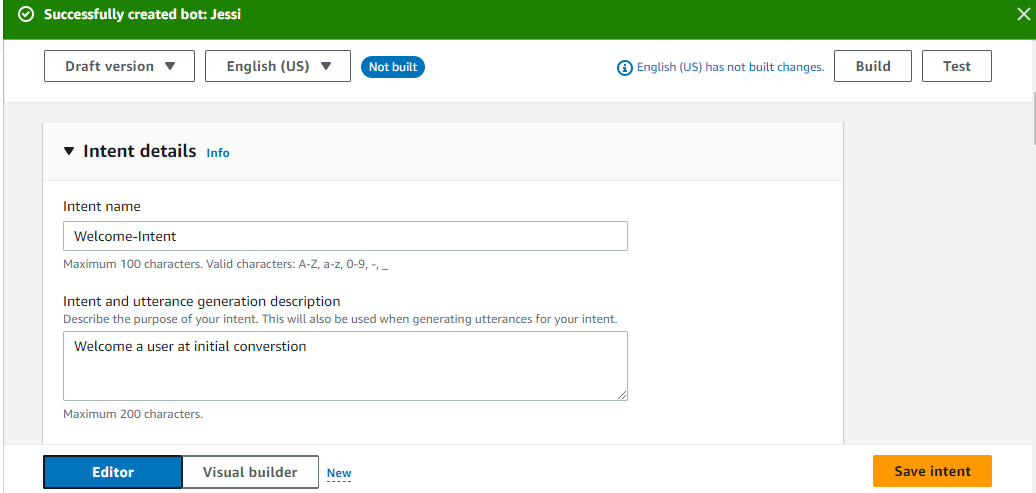
now
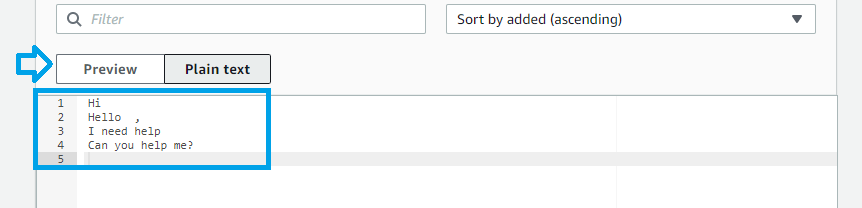
Scroll down to the Sample utterances panel.Click the Plain Text button.
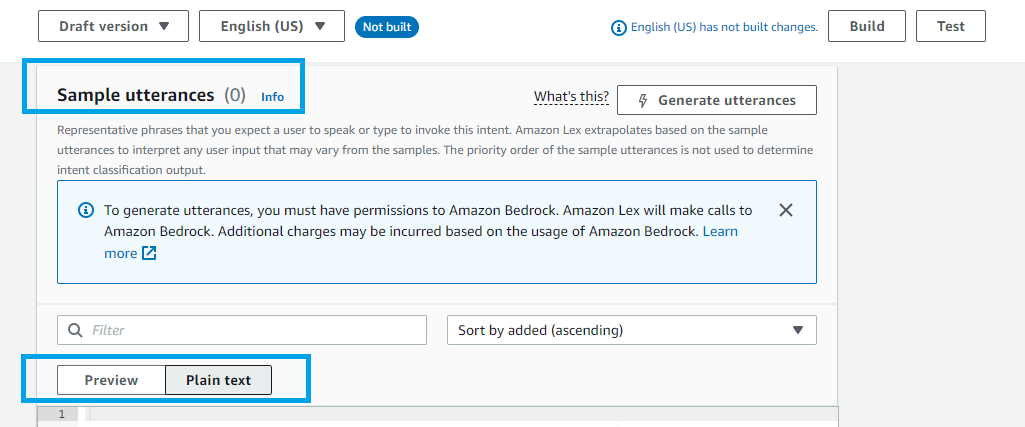
Copy the text below, which represent the user inputs (called utterances) that will trigger this intent, and paste it into the text window:
HiHello,I need helpCan you help me?
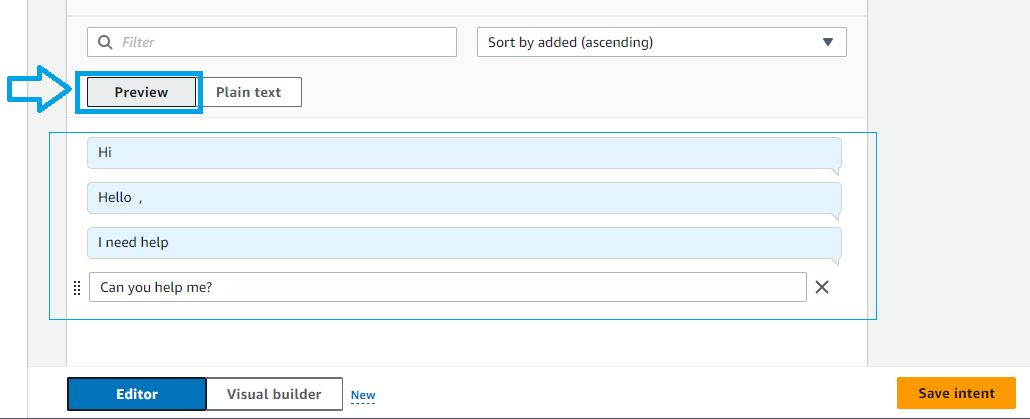
Click back to the Preview button to see these utterances in chat form.
You can configure the Initial response if you want , You can provide messages to acknowledge the user’s initial request. You can also configure next step in the conversation and branch based on conditions.
for now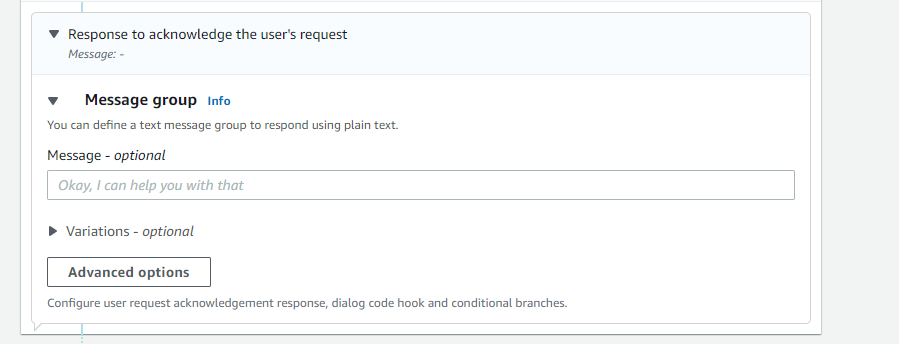
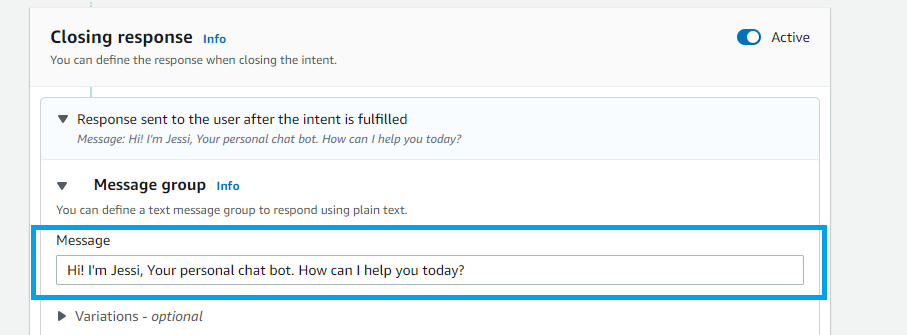
Scroll down to Closing response, and expand the Message group for Response sent to the user after the intent is fulfilled.
In the Message field, enter the following message:
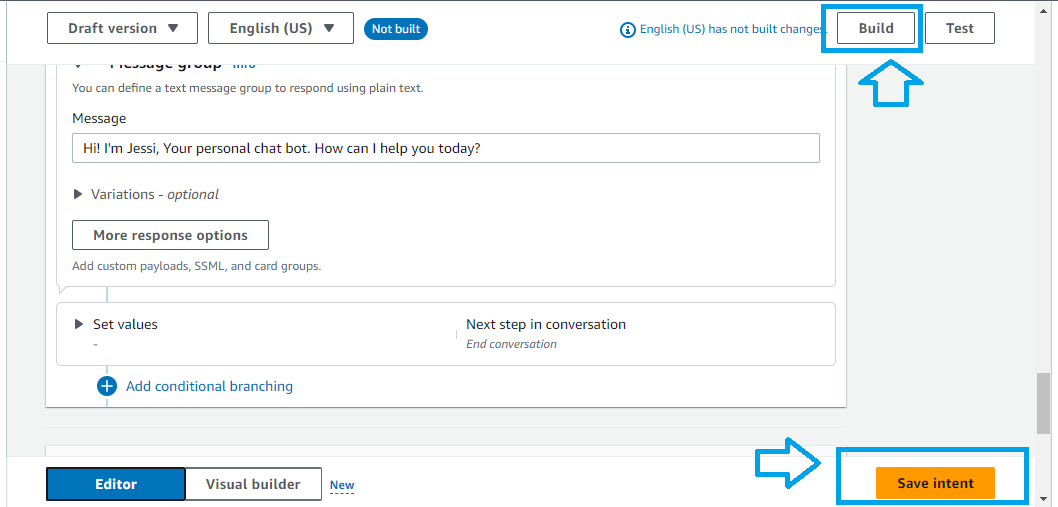
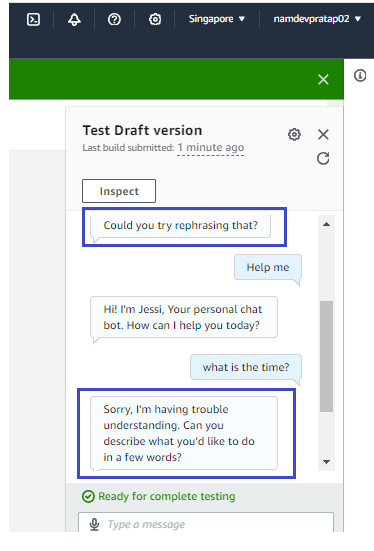
Hi! I'm Jessi, Your personal chat bot. How can I help you today?
Choose Save intent.
Choose Build, which is close to the top of the screen.
This can take 30 seconds - time for a stretch!
Choose Test.
The following dialog will pop up, and you can interact with the bot by entering your opening message.
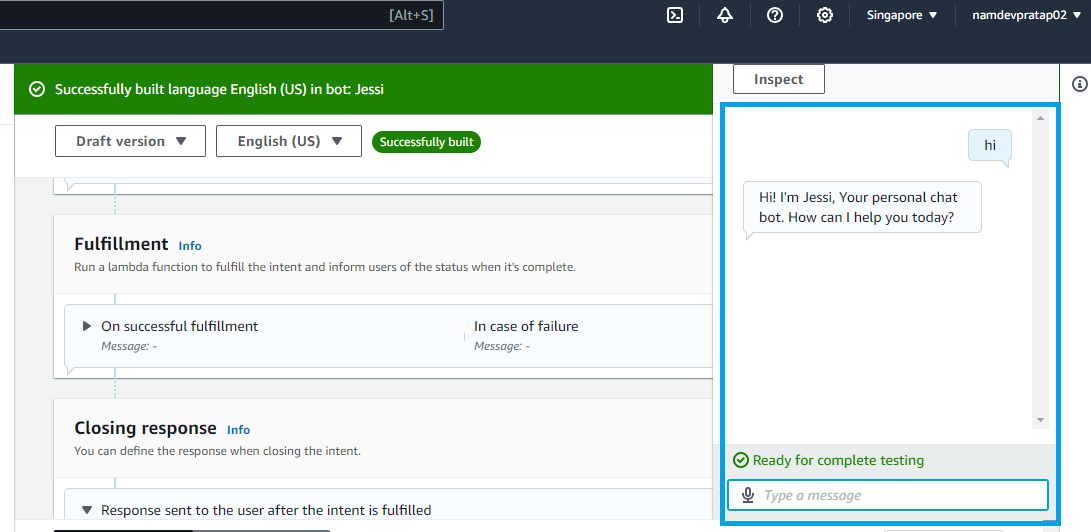
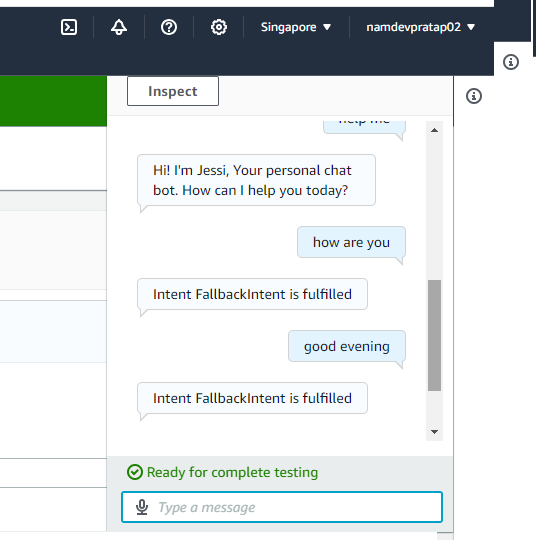
How does my chatbot handle user inputs?
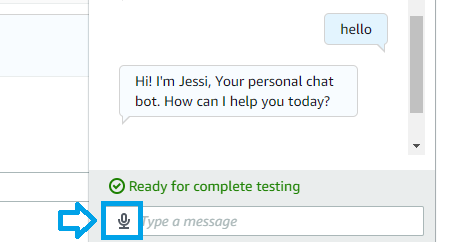
Amazon Lex successfully recognizes the first three inputs by using machine learning techniques to match them with your defined utterances.However, the last two inputs fail to be recognized, resulting in a response from the FallbackIntent. This indicates that Amazon Lex couldn't match these inputs to any of the predefined intents. We'll explore what the FallbackIntent means in the next step.You can do voice test as well Click on the microphone icon at the left of the chat box, speak "Hello" and then click on the tick on the right.

Managing FallbackIntent
In the left-hand navigation panel, select FallbackIntent.
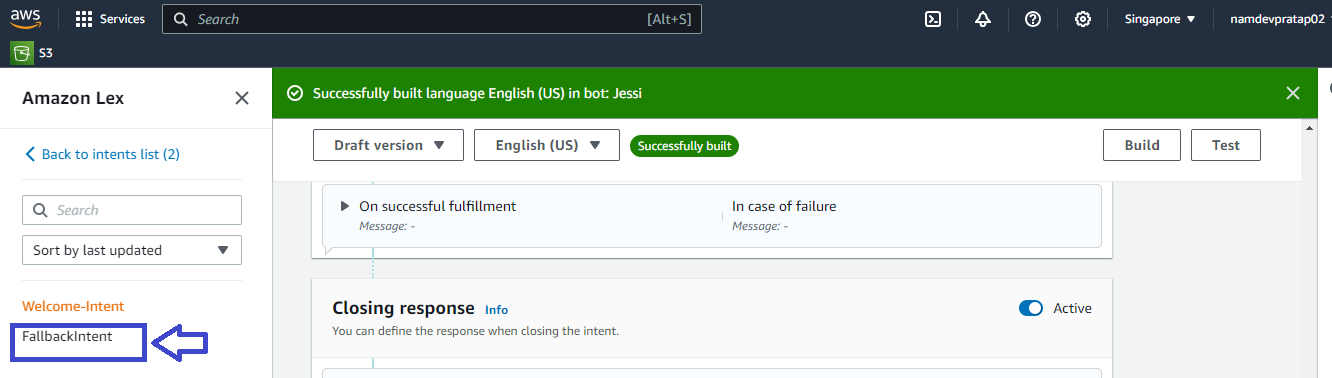
What is FallbackIntent?
Recall the intent classification confidence score threshold, which is set to 0.4?If your chatbot's confidence score falls below 40% for all the defined intents (currently, only the WelcomeIntent), the FallbackIntent is activated.Consider it as a custom error message that the chatbot uses to inform the user when it doesn't understand their input.The default FallbackIntent message ("Intent FallbackIntent is fulfilled") might be unclear for you
To make it more user-friendly, we’ll rephrase the message to clearly indicate that the chatbot didn’t understand the user’s request.
Scroll down to Closing responses.
Expand the speech bubble for Response sent to the user after the intent is fulfilled.
In the Message field, enter the following text:
Sorry, I’m having trouble understanding. Can you describe what you’d like to do in a few words?
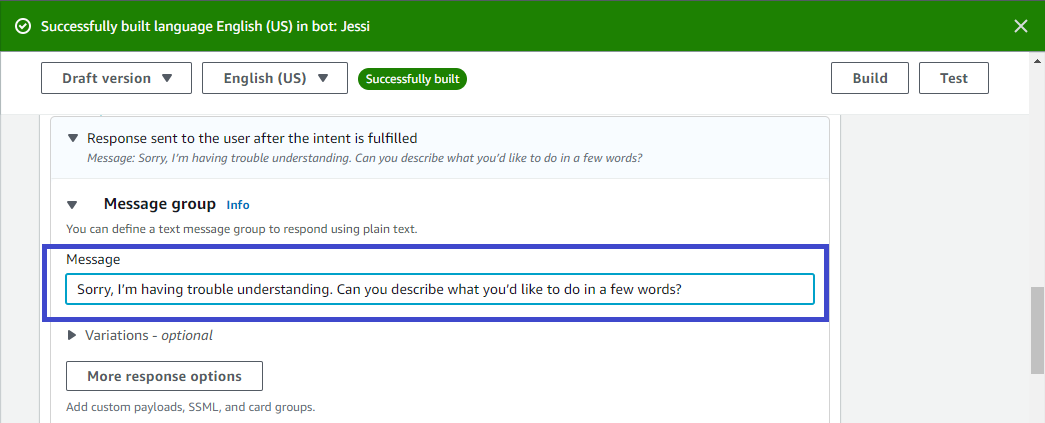
Now you will see Variations - optional
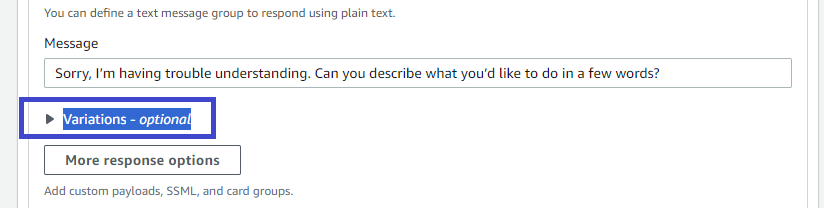
You'll notice another toggle next to the label Variations - optional. Open the toggle. Enter the following text:
Could you try rephrasing that? I can help you find your account details and many more
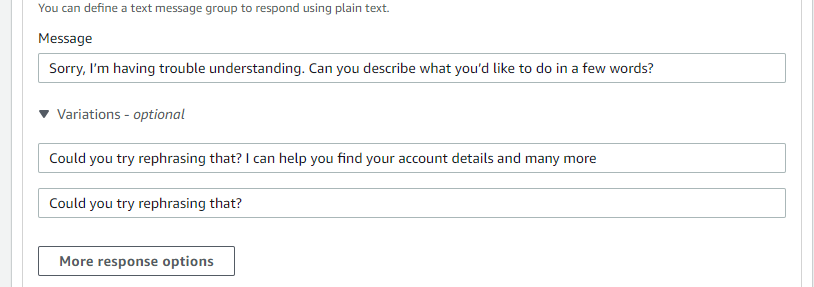
Click on Save intent.
Click on Build—time for a quick break!
Click on Test.
Let's test the 2-3 messages that failed previously. What do you observe now?
In the next phase of this project, we will explore how to implement this chatbot for a banking application. We'll cover functionalities such as checking account balances, validating credentials, and more. Stay tuned!